
Move a fin
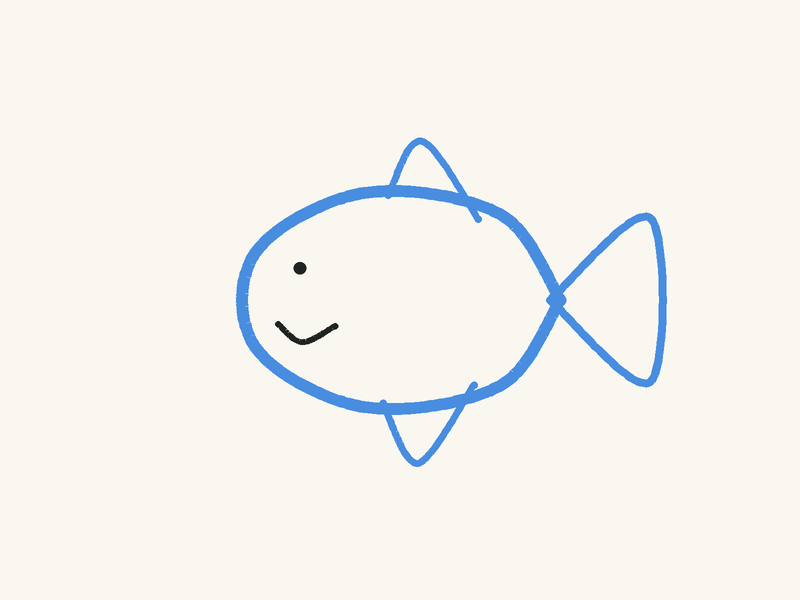
Use the fish starter project. Make its tail wiggle and draw something the fish discovers along the way.
Start with the fish ↓ DrawToMove
Start with the fish or face: a simple drawing, one part, one movement. Combine several movements with the sheep or spider and web.
Exercises for trying individual movements.
Use the fish starter project. Make its tail wiggle and draw something the fish discovers along the way.
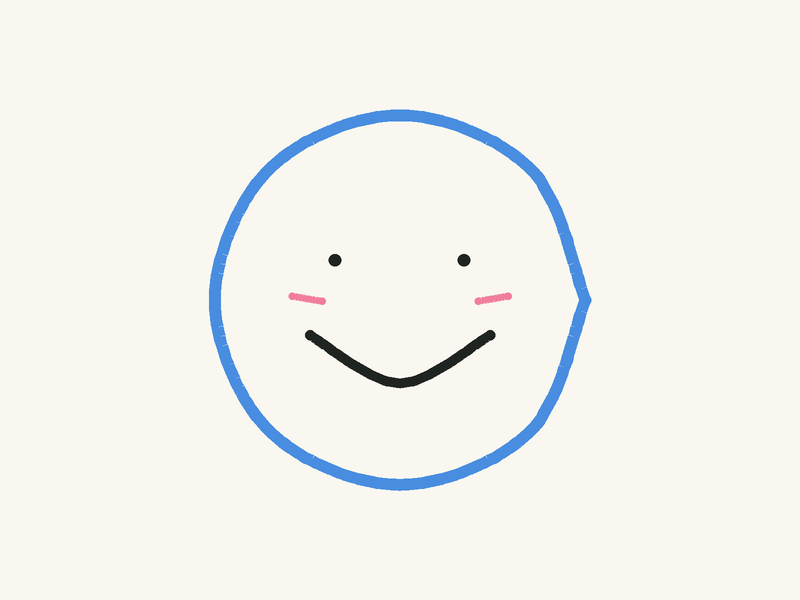
Start with the fish ↓Open the face starter project. Move its mouth or eyes. Can your face tell a little story without words?
Start with the face ↓Draw your sheep in white on blue. Add the eye and mouth in black.
Switch to Animate. Hold a foot or the tail tip until the circle fits, then move that part. Record the next movement afterwards. Movements start together; there is no need to return to the beginning.
Tap the sheep briefly. Drag it up and back down for a hop. Then record its path across the canvas. Play combines your recorded movements.
Tap and release on the spider. Drag it into the web with one finger. Then select the web and enlarge it with two fingers.
Hold a spot until the shrinking circle covers the desired region. Drag to record motion there.
Add more movements: they play together. To start a movement later, play and pause at the position you want. Or hold Play/Pause and choose its start on the timeline.
Starting with version 2.0.1, choose a frame on the timeline and tap Add to insert a photo, text, an emoji or a sticker. To hide it later, choose another frame and use Layers → Properties → Hide from here.
Import a photo and choose “Edit the whole photo”.
Hold on the nose until the circle is small enough. Then drag the selected region.
Drag the nose gently. Adjacent image areas deform elastically. Play your recording and add your voice or sounds if you like.
Tap an object briefly and release. Blue shows the selection. Then drag it; use two fingers to rotate and scale it.
Touch a drawn line, its endpoint or a part of an emoji and drag immediately. Only the blue highlight shows what moves; no selection circle appears. On photos, select a region with the circle or lasso first.
Hold for about a second until the circle appears. Wait until it fits, then drag. You can also release first and move the selection afterwards. The circle shrinks to a minimum diameter of about 4 mm; only the blue highlight remains while moving.
Start beside a line and encircle the parts you want. Release, then drag a spot inside the selection: the highlighted sections deform with it. The lasso disappears while moving. On photos, immediate dragging also starts a lasso.
Use Draw to create your lines. Move contours/objects reshapes them in drawing mode. Animate records your movements. Under ?, find the controls explained and Try gestures with short demonstrations.
Record the motion first. Then tap the microphone recording button, choose one run or a loop, and confirm with OK. After the countdown, animation and audio recording start together automatically. Speak or add your own sounds.
One run ends automatically. Tap the microphone again to stop a loop. Videos include your audio; GIFs have no sound.
Insert a photo. Hold on the subject until the circle fits, or draw a lasso around the region you want. Then drag inside the selection to move that part of the image. A photo filling the canvas stays in place as a whole.
Draw a figure or add text, an emoji or a photo. Edit photos as whole images or convert them into contour lines.
For drawings and emojis, tap and release to select a whole object, or drag immediately to move a local part. Hold to open the selection circle. Use the lasso to encircle several parts. On photos, select with the circle or lasso before moving.
Switch to Animate and move your selection. Additional movements start together. For a later start, play and pause, or hold Play/Pause to open the timeline. Tap Play to see the movements combined.
Tap the microphone, choose one run or a loop, and confirm. Animation and recording start together after the countdown.
Save the editable .drawtomove project. Share a video with audio or a silent GIF.